Tree / Self Hosting / Movies & TV Shows / Jellyfin / VideoOSD
On/Off Menu
Switch player addons on and off during playback.
- Status
- Green · Published
- Type
- script
- Hours
- about 7
- Tokens
- about 3.5 M
A control layer for the other player addons, with no visual function of its own.
In this article
The gap in my own script set
This one fixes a problem that only exists because of the other scripts. Once you run several player addons together, hiding a button or an artwork overlay meant editing the script by hand. The goal was one switchboard for all of them, reachable during playback, without touching any code.
Customs: one list of checkmarks
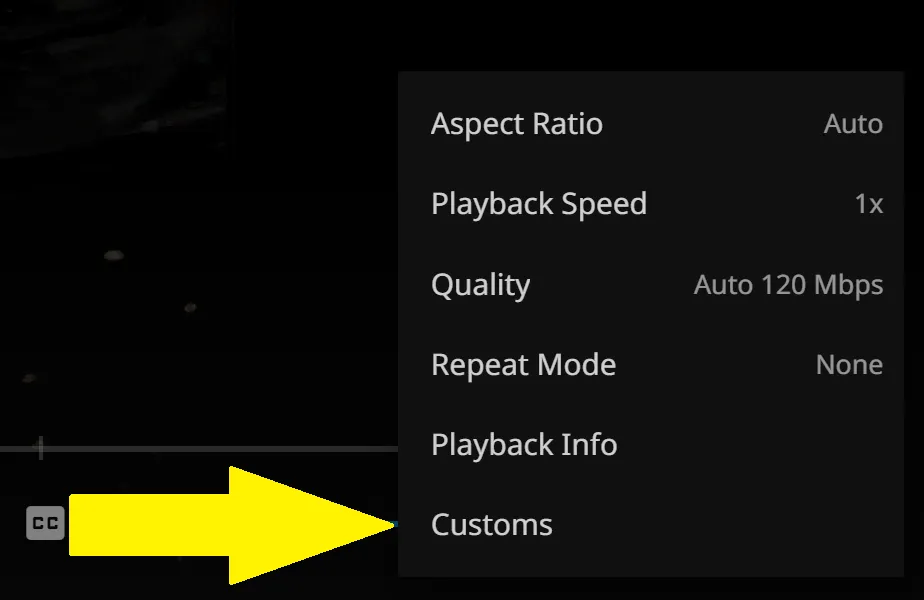
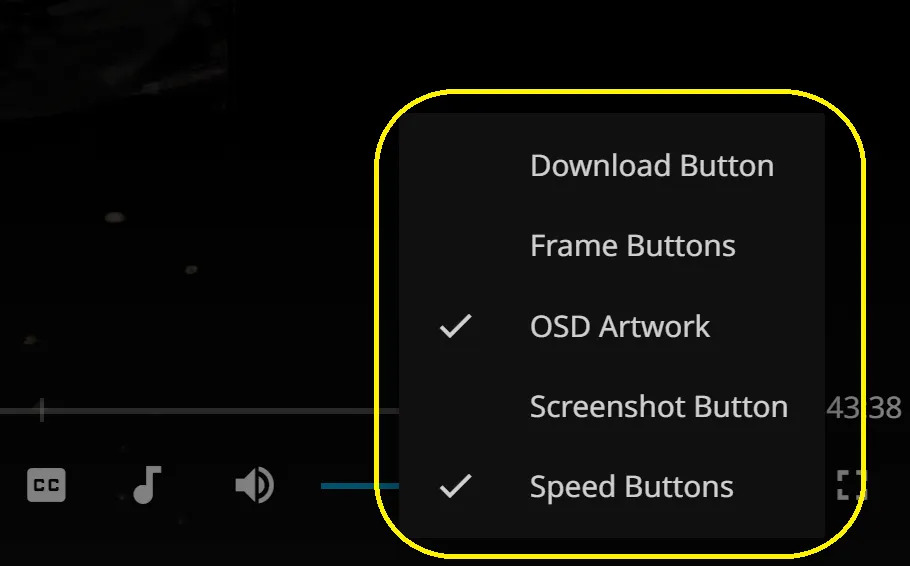
The script adds a Customs entry to Jellyfin's playback settings menu. It opens a compact list of every supported addon, with checkmarks for the ones that are on. Click an entry and the addon switches on or off right away, with no reload. The list uses Jellyfin's own action sheet classes, so its look comes from your theme.
| Addon | What the switch controls |
|---|---|
| Artwork Display | The artwork overlay on the player |
| Speed Buttons | The speed step buttons in the transport bar |
| Frame by Frame | The two frame step buttons |
| Download | The download button |
| Screenshot | The camera button |
| A-B Loop | The loop button |
This is useful when you run several of them and want a clean player for one film and all your tools for the next. A switch takes effect immediately:
- The new state is saved in the browser.
- The addon's own on and off behaviour runs.
- The checkmark updates at once.
Six addons support it: Artwork Display, Speed Buttons, Frame by Frame, Download, Screenshot and A-B Loop. If none of them is loaded, the menu shows a short empty message. It is not a visual effect or a playback feature, only a small control layer. It does not install or remove anything, and it changes no server setting.
It only reaches addons that are already loaded and support the integration, so a script you never installed cannot appear here, and nothing in this menu replaces the injector or the plugin's admin page.
It needs nothing but the addons you want to switch: add them next to this script in your injector and start a video.
How the addons find it
There is no central list that has to know every addon. Each addon registers itself with a shared menu object. That also means every addon works without the menu: if it is missing, the addon just runs as always on. On an early version the order in which scripts loaded could matter, and the README told people to load the menu first. That note is gone.
The state of each entry is stored in the browser, so it belongs to that browser and that user. Clearing browser storage can reset it.
When the plugin arrived, part of the original job moved away. Whether an addon loads at all is now decided on the server, which leaves its script out if it is switched off. This menu still does what it always did for whatever did get loaded. The only new setting is the sort order of the list:
| Setting | Starts at | What it does |
|---|---|---|
sortMode | 'alphabetical' | 'alphabetical' sorts by name, 'custom' uses the list below |
customOrder | empty | The addon IDs in the order you want. Addons you did not list follow alphabetically, so a new one never vanishes |
Both are plain values at the top of the script, so you can edit them by hand without the plugin. For most people alphabetical is fine, and a custom order is worth it if you switch one addon far more often than the rest.
A menu has more edges than it looks
From the outside this is a list with checkmarks. Much of its 1,100 lines exists because a popup inside someone else's app has to behave exactly like the app's own popups. Claude sessions found these cases by reading how Jellyfin's dialogs work and testing with real clicks and real keys.
The browser's back button was the first. It left the whole video page instead of closing the popup. The popup now gets its own history entry, written the way Jellyfin writes one, in 10.10 and 12.1 alike. A video that ends with the popup open needed the same care: Jellyfin's own step back only removed the popup's history entry, and the finished video page stayed on screen, so the step is now repeated when the video is over.
Closing was harder than opening. After Escape the outside click listeners stayed armed, so your next click anywhere was swallowed and closed an unrelated menu. Closing the settings sheet by simulation left a detached element as the focus target, so keyboard and remote navigation found nothing afterwards. It now closes through Jellyfin's own dialog path, and the simulated close stays as a fallback.
Keyboard and remote users also get a visible focus state that matches the hover look, while mouse use stays as it was. None of this is exciting, but it is the difference between something that looks native and something that behaves native.
Connected
Next: Essentials