Tree / Self Hosting / Movies & TV Shows / Jellyfin / VideoOSD
Artwork Display
Configurable artwork overlays on the video player.
- Status
- Green · Published
- Type
- script
- Hours
- about 14
- Tokens
- about 6.5 M
The largest of the player addons, and its own README still calls it highly experimental.
In this article
From one logo to an overlay builder
While a film plays, Jellyfin's library artwork is gone. The player shows its controls and a title, and the logos, clearart and discs stay in the library. The idea started small: one global clearlogo.png in the top left corner of the OSD.
During development that proved too restrictive. So the system was redesigned into independent profiles for movies, episodes and videos. Each one can show completely different layers, with no shared limits. What began as a simple overlay turned into a small artwork builder, and at about 2,400 lines it is the largest of the eight player addons. My README still calls it highly experimental.
@HighImKevin and @BobHasNoSoul from the Jellyfin community helped shape the initial code base and provided several fixes. Many thanks to both of them.
What you can put on screen
The layers are logo, clearart, disc, poster, banner, thumb, the main backdrop and backdrops 1 to 9, plus season and episode variants for TV shows. Everything is drawn from artwork Jellyfin already has. It runs purely in the browser, and nothing changes on the server.
Every element has its own settings in the CONFIG object at the top of the script: on or off, source level, horizontal and vertical alignment, offsets, maximum height and width, a z-index from 1 to 9, and an optional fallback. The source level is the clever part. For movies and videos you choose file, parent or grandparent. For episodes you choose episode, season or series. By default it walks the whole chain until it finds something, so clearart can fall back to a logo, or a season to its series.
A disc can sit still or rotate. Rotation follows playback and stops on pause, and the speed is set per profile. All artwork appears and disappears together with the OSD, so it never sits on the picture while you just watch.
| Layer | Special options |
|---|---|
| Logo (clearlogo) | none |
| Art (clearart) | fallbackToLogo, and hideLogoWhenClearartFallback so the logo does not appear twice |
| Disc (discart) | spinningDisc for rotation, rotationSpeed in seconds per turn |
| Poster | season and episode posters for TV shows, with fallbacks up the chain |
| Banner | season banner for TV shows |
| Thumb (landscape) | season thumb for TV shows |
| Backdrop (fanart) | season backdrop for TV shows |
| Backdrops 1 to 9 | extra fanart images, each with its own position |
The settings of one layer
Each layer in each profile has the same set of values. As an example, these are the defaults of the movie logo:
| Setting | Default | What it changes |
|---|---|---|
enabled | true | Shows or hides this layer |
movieSourceMode | "default" | default, file, parent or grandparent. Episodes use tvShowSourceMode with default, episode, season or series |
horizontal | "left" | left, center or right |
vertical | "top" | top, center or bottom |
offsetLeft and offsetRight | "3.8vw" and "4.5vw" | Distance from the edge, in percent of window width |
offsetTop and offsetBottom | "6vh" and "9.4vh" | Distance from the edge, in percent of window height |
maxHeight | "9.3vh" | Maximum height, which must have a value |
maxWidth | "13.5vw" | Maximum width, or auto |
zIndex | "8" | Stacking layer from 1 to 9, higher is in front |
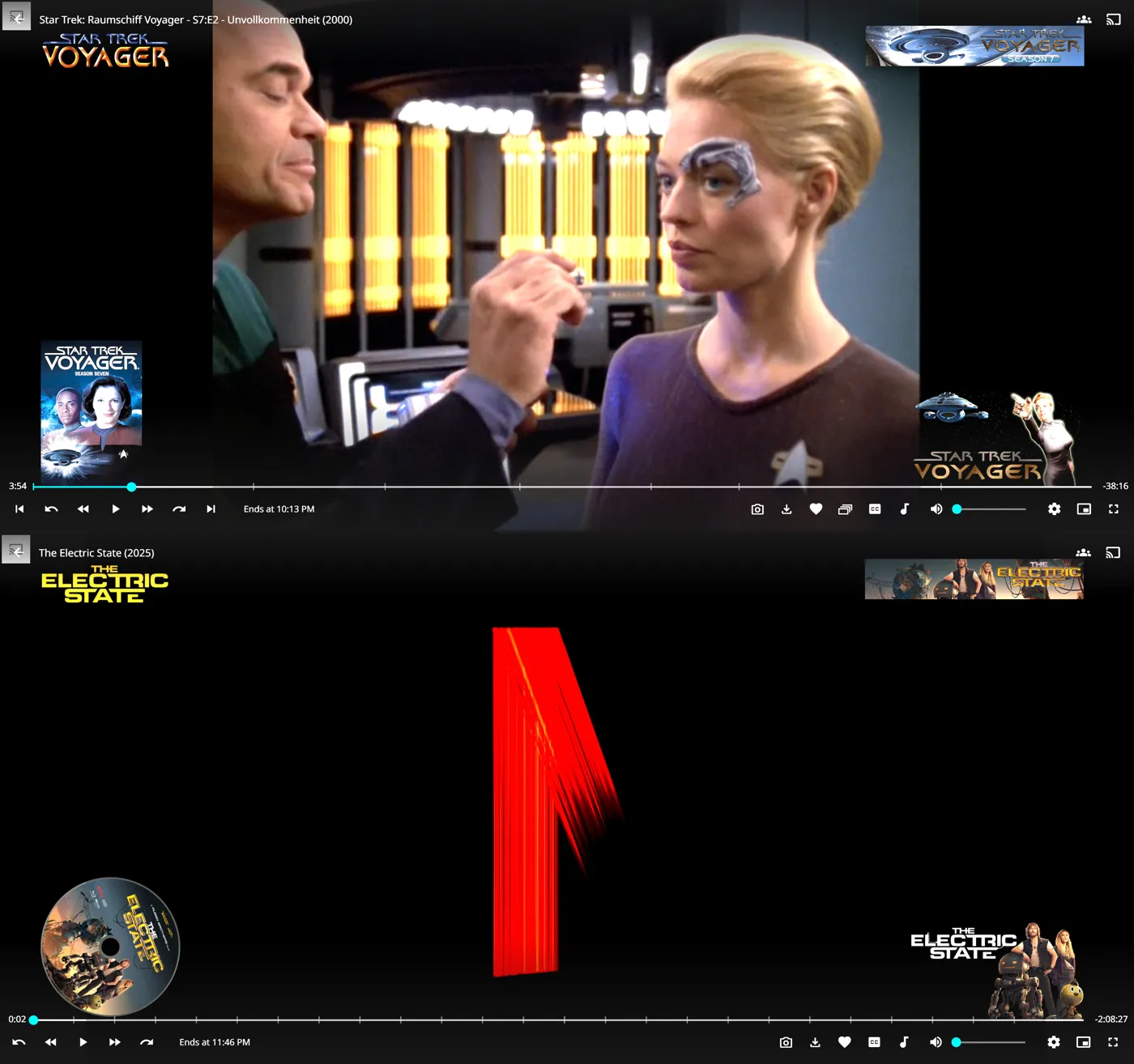
Out of the box a movie shows the logo top left, clearart bottom right, and a rotating disc bottom left at one turn in 15 seconds. Poster and thumb start switched off. That is a good place to begin: turn off what you do not want, then move the rest.
The list of options is long because each of the three profiles holds its own copy of every layer. A film can show a spinning disc and a logo while an episode shows only the season poster, and neither setting touches the other.
The script also handles the moments around the layers. Artwork changes by itself when the next item starts, resets on every item change, fades out smoothly when you leave the video page, and adjusts to real fullscreen and browser fullscreen. Layers of the media type that is not playing stay hidden. The overlay can be switched during playback through the On/Off Menu.
One warning from the README: the screenshot shows many layers at once only to demonstrate them. It looks best with one layer, a clearlogo top left or clearart bottom right, and at most a second one such as a disc.
The two things that fought back
Getting the layers behind Jellyfin's own elements worked for trickplay thumbnails, skip buttons and media info, but the artwork stayed in front during Play Next. That event could not be triggered reliably by hand, which made debugging difficult, and no stable hook turned up. HighImKevin solved it.
Special content was the other one. For a long time the README listed stacked files, trailers and extras as not fully supported. Much later I noticed during testing that they do work: Jellyfin treats them as regular videos. The real limit is that a trailer or extra cannot point back to its film. If you want artwork there, it has to sit next to those files, usually as a copy: clearlogo.png in the folder of the extra, or filename-clearlogo.png right beside the video. With file stacking the images must sit directly next to the files.
Life inside the plugin and with games
Inside the plugin a Claude session took over the code, working from what I saw on screen. I reported that artwork in vh and vw units fit the control bar at only one zoom and window size. So in the plugin, positions moved to rem units and CSS variables, which also removed a jitter of nearly 8 pixels at the top anchor, and that meant converting hundreds of defaults and admin fields.
Games were the last big step. Without a change the player showed only a video's own images, so a new game profile now shows the game's logo, poster and backdrop on its trailers, extras and Steam videos. The first version kept the old game after a switch between versions of a game. Reading the detail page again on every page view fixed that. Playnite Bridge also has its own player artwork, so the two scripts agree on who draws. When the Bridge draws, this one draws nothing. Side by side they matched within a pixel.
For home videos, which never get official artwork, a small script of mine writes a clearlogo.png into every folder from its name, so even a home video has a logo to show.
Connected
Next: Download Button