Tree / Self Hosting / Movies & TV Shows / Jellyfin / VideoOSD
Playback Speed Menu
Custom playback speeds in the player menu.
- Status
- Green · Published
- Type
- script
- Hours
- about 6
- Tokens
- about 2.8 M
Your own speed list inside Jellyfin's menu, as a script or as part of VideoOSD Tweaks & Candy.
In this article
Eleven fixed speeds
Jellyfin's playback menu offers 11 speeds: 0.5, 0.75, 1, 1.25, 1.5, 1.75, 2, 2.5, 3, 3.5 and 4. There is no 0.33x, no 5x and no 10x, and you cannot remove an entry you never use. The goal was simple: your own list in the same menu.
Same menu, different list
- Adds any custom speed to the player's own playback speed menu
- Removes default entries you never use
- Sorts the list from slow to fast, whatever order you typed it in
- Keeps the look: new entries are copies of Jellyfin's own, with the check mark on the active speed, and the menu grows upwards so it stays on screen
- Shows the active custom speed next to "Playback speed" in the settings sheet
- Remembers the speed for the next item
- Shares the list with the Speed Buttons, so one edit changes both
One array decides
Everything hangs on one array called SPEEDS at the top of the script. Edit it first. The values that ship with it are only examples: 0.1, 0.25, 0.33, 0.5, 0.66, 0.75, 1, 1.25, 1.5, 1.75, 2, 2.5, 3, 3.5, 4, 5 and 10. You can add entries and remove any of the default ones. There is no limit on the number of entries as long as the menu still fits the height of the video window.
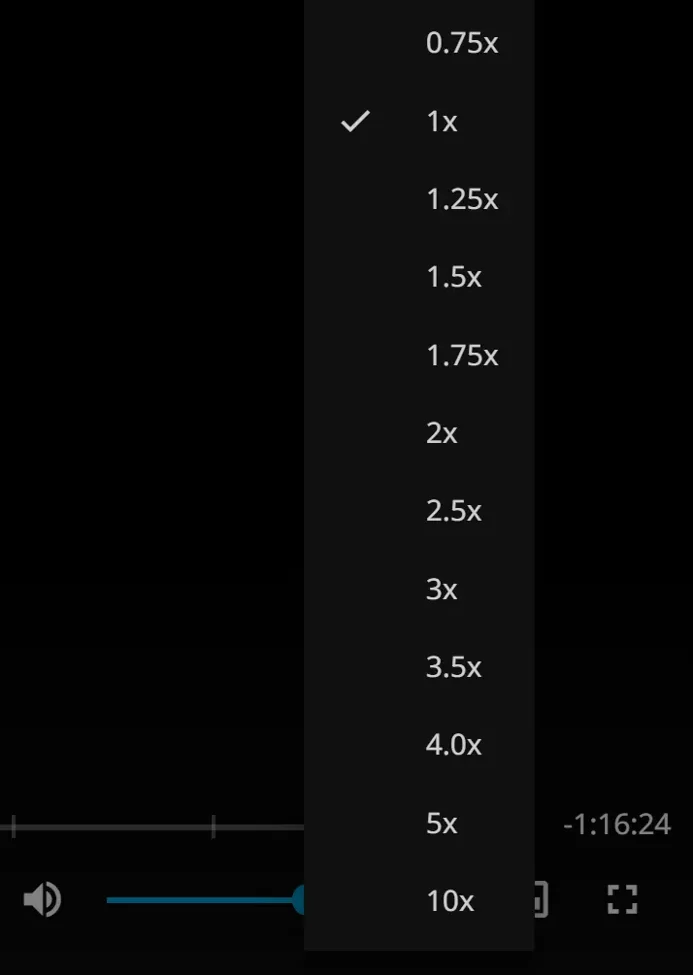
The script goes into an injector or a userscript manager like Tampermonkey or Violentmonkey. Adjust the list before you save, then open a video and look at the playback speed menu.
A sensible list keeps 1 and a few steps around it, adds the unusual values you actually want, and leaves out anything below about 0.2. If you only want finer slow motion, something like 0.25, 0.33, 0.5, 0.75, 1, 1.5, 2 is enough. If you skim long recordings, add 5 and 10 at the top.
The same list decides what the Speed Buttons and the speed keys step through, so a value you delete here is gone from all three. The example list also has odd values like 0.33 and 0.66, which Jellyfin's own list does not offer.
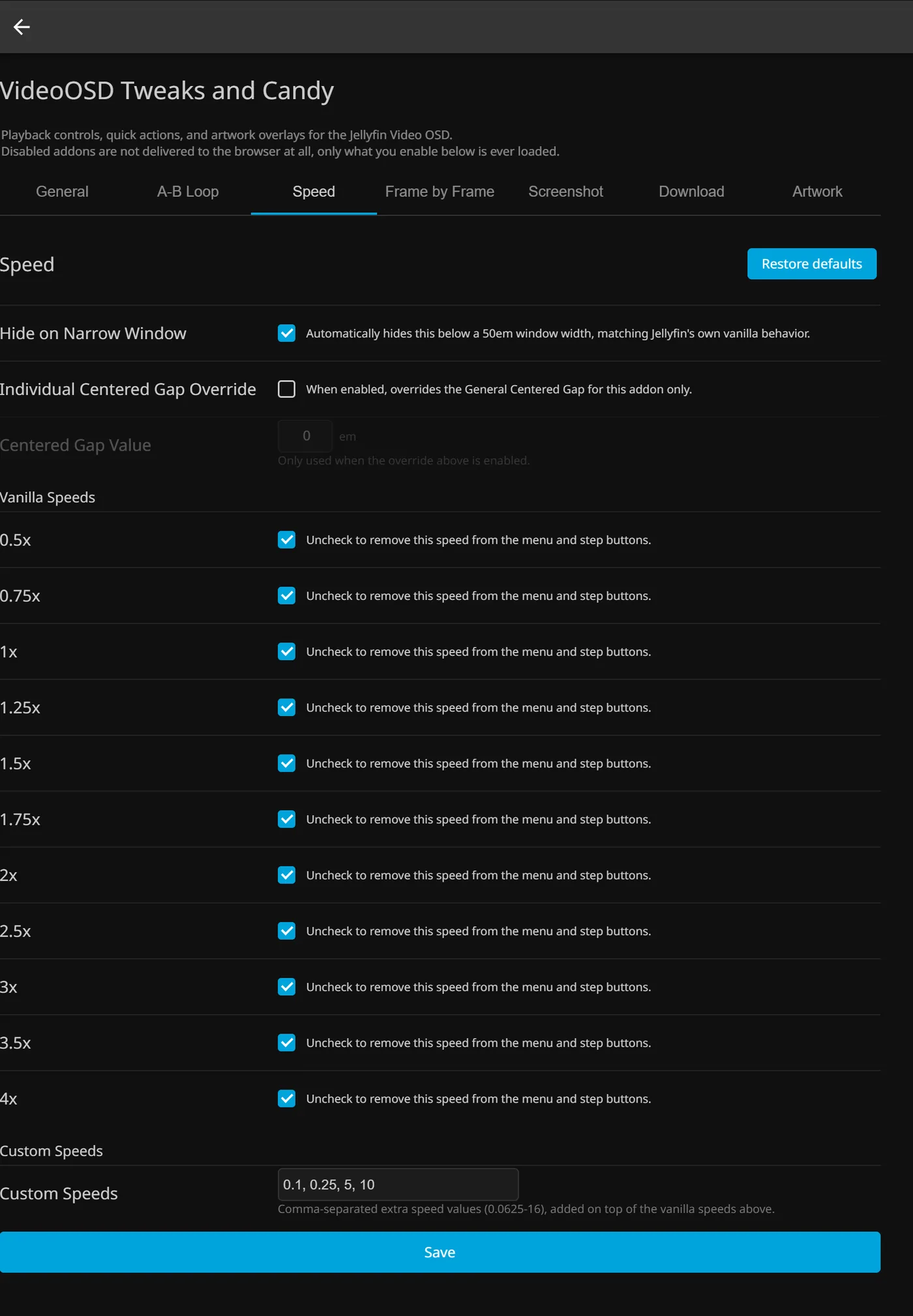
In the plugin the array becomes an admin page: every default speed can be switched off one by one, custom speeds can be added, and the final list is built from those two. Without the plugin, your hand-edited list simply stays in charge.
What the browser allows
The possible range is 0.0625x to 16x. Behaviour depends on the Chrome and Chromium video engine, not on Jellyfin, so this is really a menu on top of what the browser can do.
Testing the extremes was the interesting part. Below 0.1x, switching back to very high speeds could cause problems, and picture and sound became very choppy and pitchy, although audio kept working. For practical use the recommended minimum is about 0.2x to 0.25x. Very high speeds, on the other hand, worked like a charm.
Everything happens in the browser. No server setting changes, and because the list lives in the script, each browser that loads it gets the same menu. The menu itself stays Jellyfin's own, so there is no new button in the player and nothing new to learn.
The part that looks done and is not
Adding entries to a menu is the easy half. The harder half is that the rest of Jellyfin still only knows its own 11 rates, and that is where the work of the Claude sessions went. They read the jellyfin-web source for both versions and tested in a real browser.
Jellyfin's own speed keys showed it first. They step through the built-in list only, so from a custom rate like 0.33x they jumped straight to 0.5x. My instruction was: like vanilla, only with our custom speeds. Now the script lets Jellyfin handle the key and then redoes the step through the custom list, stopping at both ends like Jellyfin does. No new key was added, so 10.10 keeps > and <, and 12.1 keeps Shift with the period and comma keys.
The settings sheet had the same blind spot. Jellyfin only prints the current speed next to "Playback speed" when it is one of its own rates. With a custom rate the value was simply missing, so the script now adds the same element itself.
The third hurdle had nothing to do with speed: an audit found that certain newer JavaScript operators would make older TV browsers drop the whole file, so they were removed from all the scripts.
A custom rate is stored where Jellyfin itself reads it, so it carries over to the next item. The Speed Buttons read this script's list automatically, so both controls always offer the same speeds.
Connected
Next: On/Off Menu