Tree / Self Hosting / Movies & TV Shows / Jellyfin / Library View
Autoscroll Button
Automatic scrolling with adjustable speed and pauses.
- Status
- Green · Published
- Type
- script
- Hours
- about 6
- Tokens
- about 3.0 M
Made as a companion to Random Button Extended and the Fullscreen Button, for passive browsing.
In this article
Hands off the mouse
This script originally came about as a companion to Random Button Extended and the Fullscreen Button. It slowly moves the page, so large libraries can scroll past while random browsing is active. It is made for passive browsing, dashboards and hands-free discovery. It works fully on its own, and no state is shared with the other scripts.
One button, three kinds of click
The button sits in the header.
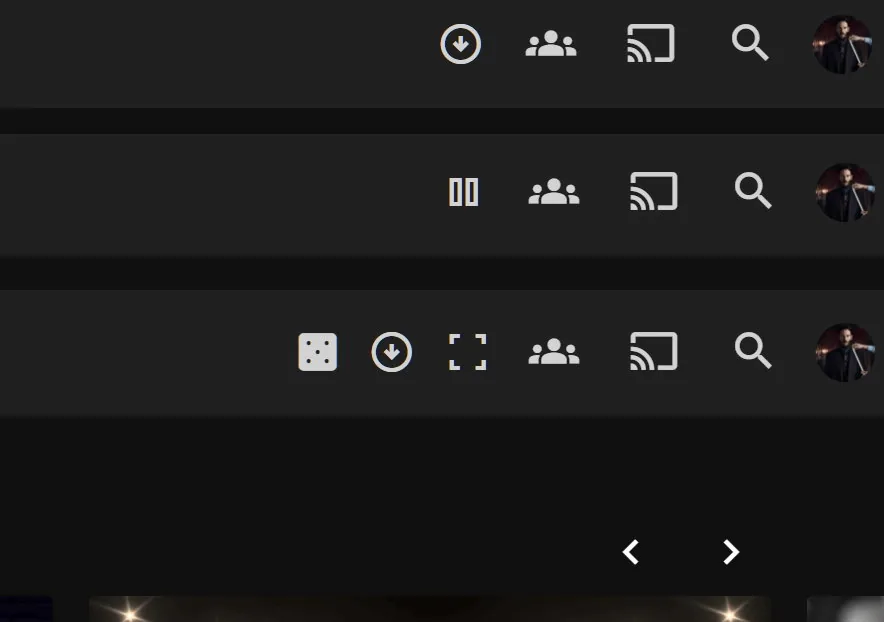
- Single click: start or pause scrolling.
- Double click: cycle through three speeds.
- Triple click: cycle the delay at the top of the page through 0, 1, 3, 5 and 10 seconds.
The current value shows briefly next to the icon, and the icon itself shows whether it is running. Scrolling starts from where you are, and a page change resets the cycle cleanly. At the bottom it pauses for 3 seconds, jumps back to the top, waits for the delay and starts again.
The delay needs a word of explanation, because it looks unnecessary until you use it. It is how long the script waits at the top before moving. Jellyfin may still be loading posters and metadata, the layout may shift just after navigation, other scripts or animations may be running, or you may simply want a moment to look. It applies when scrolling starts from the top, after each full cycle and after a page change.
The three click patterns follow the same idea as the Random Button: the plain action on one click, and on two or three clicks what would otherwise need a settings page. That keeps the whole control in one header icon. If you would rather type, Keyboard Library Navigation has its own version of this: scroll, scroll slow, scroll fast, stop, and scroll delay 5.
Settings stay temporary on purpose
Everything you change by clicking lives in memory only. A reload brings back the defaults: speed level 1, no top delay, 3 seconds at the bottom. Nothing goes to local storage or the server.
For lasting changes there are three lines in the script:
| Setting | Default | What it changes |
|---|---|---|
speeds | [0.03, 0.06, 0.2] | The three speed levels a double click cycles through |
delayStates | [0, 1, 3, 5, 10] | The delay steps at the top, in seconds |
bottomDelay | 3000 | The pause at the bottom, in milliseconds |
A top delay of a few seconds is a sensible choice in libraries with many images, since it gives lazy loading time to finish. Without a reason to change them, the defaults are fine. Everything happens in the page at runtime, with no calls to the Jellyfin backend or API, and it is best suited to large libraries, dashboards or passive browsing.
No configuration is required and there are no outside dependencies, and it runs only on Windows browsers.
Slow is harder than fast
Scrolling a page sounds like one line of code, and the script still grew about fivefold. Part of that is the shared block that lets one script run on Jellyfin 10.10.7 and 12.1, part is the inline icon that replaced the Material Symbols font. The rest is what a later audit and counter-audit by Claude sessions found against the source of both versions.
Very slow scrolling was the hurdle that gave this section its name. A step is less than one pixel, 0.48 at the lowest speed, and some engines drop a step like that, so the page stood still. Missed distance is now carried into the next step, so speed 1 cannot stall, and wherever steps move normally nothing changes.
Finding the end of the page was the next one. At 125 and 150 percent browser zoom the last position can stay a fraction of a pixel short, so the bottom was never reached. There is now a tolerance of 1 pixel. The Live TV guide scrolls inside its own container and not the page, so the script looks up the real scrolling element on every step.
Stopping turned out to be as tricky as starting. A stop could be ignored while the script waited, and a restart could leave two loops running. Every start now gets its own ID, and an old loop ends itself. On the video player and the dashboard, where you cannot reach the button, it now stops by itself and shows the start icon again. The button takes Jellyfin's own header classes, matched the native buttons when measured, and has a fixed place in the shared header order with Random, Fullscreen, Cinema and Destroy.
The result still does exactly what the first version did. It just does it at 125 percent zoom too.
Also part of Essentials
This script now also runs inside my Essentials plugin, with its settings on a normal dashboard page instead of values at the top of the code. On its own, through the JavaScript Injector, it works as before.